


What it is
Stage mode turns an entire browser window into a caption screen. The source line stays small and the translation reads large — a type hierarchy built to be legible from the back row.
It isn't a separate product so much as one of the ways a single session reaches the room. The same live captions can float over your slides, fill a screen of their own, go out as sound, or land on every phone in the audience — and you can move between them mid-talk without restarting anything.
Unlike the overlay window (PiP), stage mode only needs the browser's fullscreen capability, so it works in every desktop browser, including Safari and Firefox.

Plan the screens
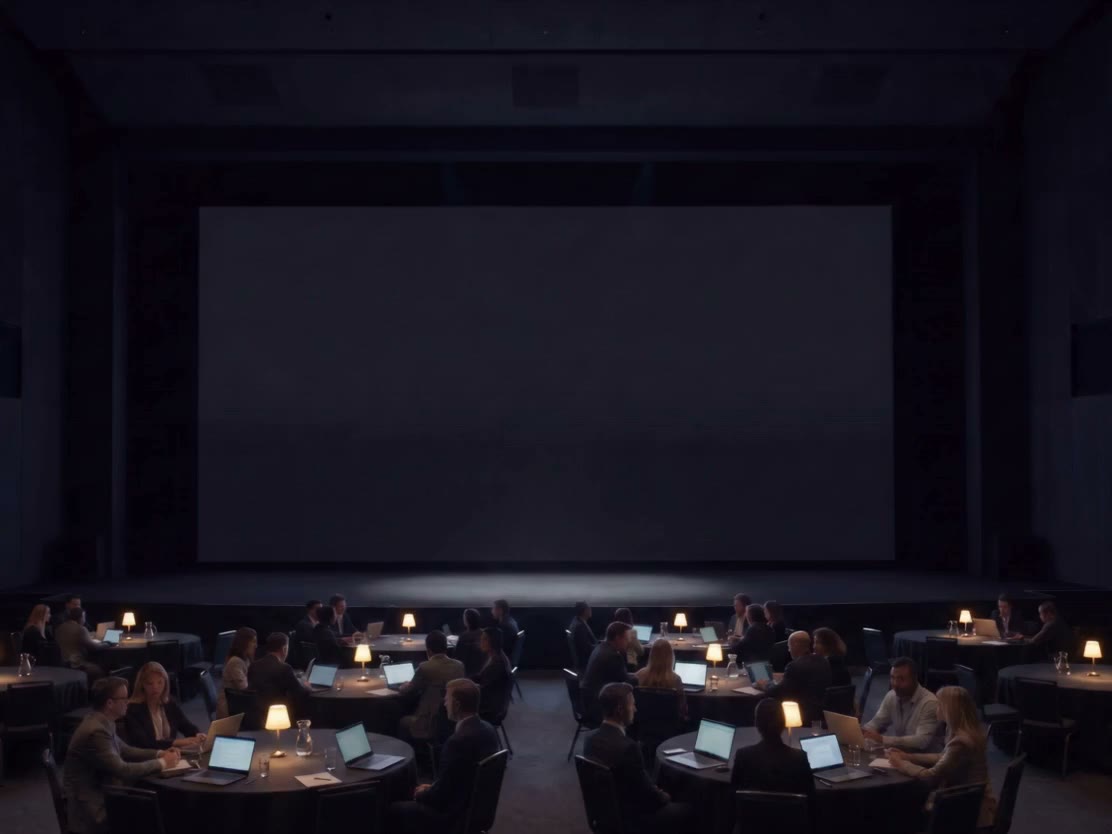
Most venues have more than one surface. Decide screen by screen — one session feeds all of them.
Over the keynote screen
The slides keep the screen. The overlay window floats above them like movie subtitles, and you drag it wherever the deck leaves room — the bottom third, a corner, the edge of an LED wall. Nothing about how you present has to change.
A screen of its own
A side monitor, a second projector, a confidence display. Stage mode fills it with black and big type so it reads from the back of the hall — the right choice for panels, ceremonies, and Q&A, where the talk rather than the deck is what people are following.
A language per screen
Open a caption window per language and send each one to a different display. House left reads one language, house right reads another, and everyone simply looks at the screen that is theirs.
The screen in every pocket
Not every seat has a clear line to a screen. Share a QR and the hall reads on its own phones.
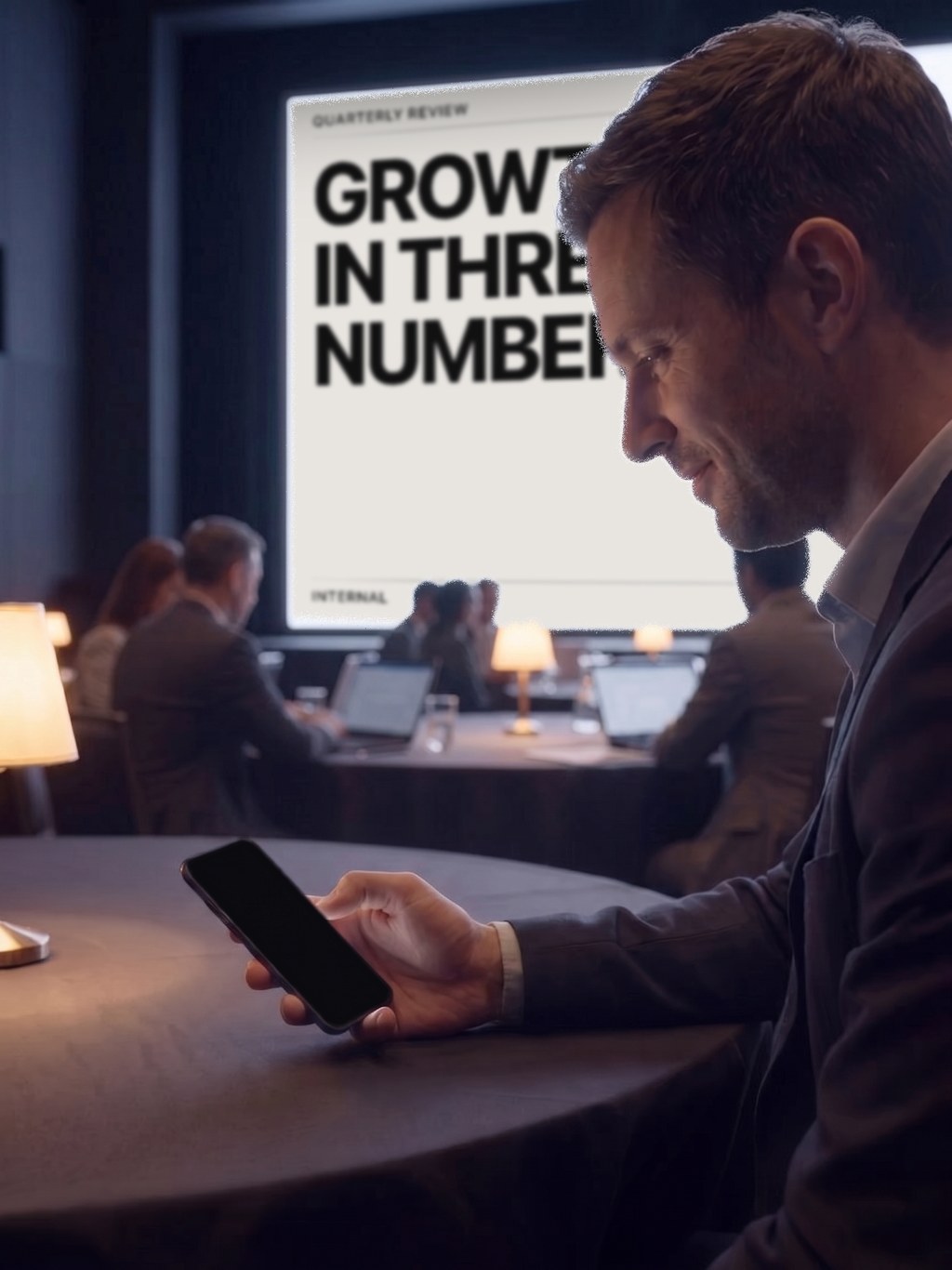
Turn sharing on and Newey issues a link and a QR. Anyone who scans it gets the live captions in their browser — no app to install, no account to create, nothing to hand out at the door. Viewers pick their own language and text size, and the viewer chrome shows up in the language their phone is set to.
Caption text passes through our servers only to be delivered: it is held in memory so latecomers can catch up, never written to storage, and dropped when the session ends. The audio does not make that trip at all — it goes straight from the speaker's browser to the speech engine.
Schedule the session ahead of time and the link is fixed. Print the QR in the programme weeks before the doors open and it still points at the right session on the day.
When the room would rather listen
Captions only reach the people who can look at a screen. Voice to Voice covers the rest.
Each sentence, once its translation has settled, is spoken aloud in a native voice through whatever your laptop plays to — the venue PA, a portable speaker, a pair of headphones. You present at your own pace and the interpreted voice follows a beat behind, sentence by sentence.
The captions keep running the whole time, so the room can read, listen, or both. It rides along on an ordinary microphone session: a card appears on the live screen, and nothing is spoken until you flip its switch.
When to use it
- International conferences and meetups where the speakers and the audience don't share a language
- Keynotes and product launches on a big stage, with the deck doing much of the talking
- Panels, award ceremonies, and Q&A — sessions where the talk, not the slides, is the focus
- Multi-hall events where each room needs a different output language
- Halls with no interpreter booth, no receivers, and no budget for either
- Browsers that can't open the overlay window, where a fullscreen screen is the way in
Before the doors open
Three things the day before are what make the day itself uneventful.
Schedule the session
Save the setup you'll use — languages, input, glossary, context — under a session title. A fixed audience link and QR are issued right away, so the programme, the signage, and the slide template can all go to print early. On the day it is one click to start, on the same link.
Load the glossary
Add speaker names, company and product names, and the terms in the session titles. Written as source=translation, an entry forces the exact wording you want; written plain, it makes the term easier to recognise. Describe the event in the context field and it travels along as a translation hint.
Rehearse once, from the back row
Speak for a minute at real presentation pace, then walk to the last row and read. Text size, caption lines, and background opacity all change live, but they are much nicer to settle while the seats are empty. If you are taking audio from the venue mixer, pick that interface as the microphone under advanced settings — clean speaker audio is what recognition quality is made of.
On the day
Start the session
Open your reservation, or set the languages by hand, and press [Start]. Pin the input language to the speaker's language rather than leaving auto-detect on — it holds steadier in a noisy hall.
Put the captions where they belong
Drag the overlay window over the slides, or pick the [Full screen] launch mode to take the venue screen whole. Move the browser window onto the projector display before you start; if the browser blocks the switch, reopen it while live with the [Full-screen stage] button.
Add the screens you need
From the live screen, open a caption window per language and send each to its own display. They all follow the same session — there is nothing to start twice.
Turn on what the room needs
Sharing for the audience QR, Voice to Voice for the spoken interpretation. Both stay off until you switch them on, and both can go on in the middle of a talk.
ESC when it's over
Press ESC to leave full screen and end the session from the console. Unless it was a private session, the transcript lands in your records, and you can have an AI summary written from it.
Details & tips
Small source, large translation
The translation is the star. Choose small or equal for the source line, or turn 'Show source' off to put translations on the screen alone.
2–4 caption lines
If long sentences get cut, go to 3 or 4 lines. More lines keep context on screen longer; fewer lines make the type bigger.
The screen stays awake
While captions are showing, the display won't dim or go to sleep — they stay up through a long session.
Live changes, instantly
Text size, line count, background opacity, and source size apply the moment you change them. No restart, no gap on the big screen.
Sentence mode for venue screens
The 'Sentence' display shows only completed sentences instead of updating a partial one. On a screen the whole hall is watching, that reads much calmer.
Console on the laptop, stage on the projector
With two displays, keep the console and its controls on your laptop and give the projector the stage window. What you adjust never shows up in front of the room.
Legibility from the back row
- The benchmark is viewing distance, not resolution — read it from the last row during rehearsal.
- In a bright hall, drop to 2–3 lines and raise the text size; larger type beats more text.
- Over slides, keep the background scrim on — a translucent backdrop is what keeps light type readable over a bright deck.
- Leave the deck a clear strip. A bottom third with nothing in it means the overlay never covers a bullet.
- Give the audience QR its own slide before the talk starts, and put it back up during Q&A.
Requirements & limitations
- Stage mode works in desktop browsers including Safari and Firefox. The overlay window (Document PiP) needs Chrome/Edge 116+ or Firefox 151+; Safari 18+ gets a simpler floating window.
- On macOS the browser overlay cannot sit above a Keynote or PowerPoint full-screen show — present in a window (Keynote: Play → Play in Window), or use the macOS app, whose overlay does stay on top.
- Microphone and tab-share permissions require an HTTPS environment.
- Captions in mobile browsers aren't supported yet, so the speaker's side wants a desktop. The audience viewer is built for phones.
- If the browser blocks the automatic switch to full screen, open it while live with the [Full-screen stage] button.
- Voice to Voice runs on microphone sessions.